
A customer looking for diamond engagement rings does not want to scroll through pages of gold chains, heavy bridal necklaces, and mangalsutras just to find what they need. Flooding retail buyers or wholesale clients with your entire design library dilutes interest and delays decision-making. The most effective digital catalog is one tailored precisely to what the buyer requested. SocioLedger’s new Categories filter in Order Magic Links allows jewelers to curate and share interactive order links containing only the specific ornament categories they choose.
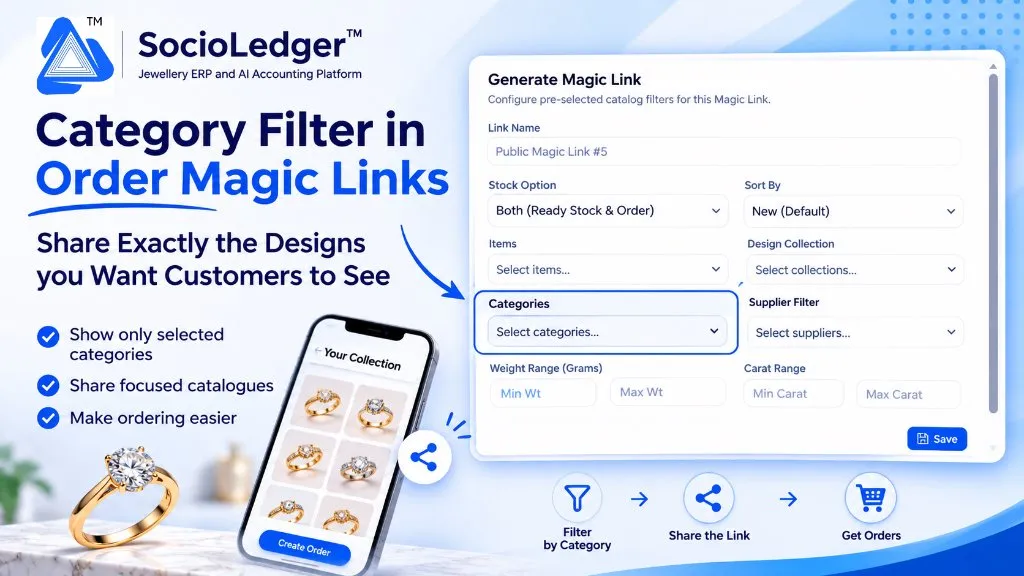
Table of contents
Open Table of contents
- The friction of unsegmented digital jewelry catalogs
- What’s new: The Categories filter in Order Magic Links
- Complete filter stack available on Magic Links
- Visualizing the customer ordering journey
- Why this matters for jewelry businesses
- Comparison: Generic digital sharing vs. SocioLedger Category Magic Links
- How it works: Step-by-step setup guide
- Where to find the Categories filter
- Part of SocioLedger’s jewelry sales and order suite
- The right catalog for every customer
The friction of unsegmented digital jewelry catalogs
In busy jewelry manufacturing and trading hubs like Zaveri Bazaar in Mumbai, Surat, Rajkot, and Karol Bagh in Delhi, jewelers manage thousands of proprietary designs and hundreds of pieces of ready counter stock. Sharing design options over WhatsApp or email has become standard practice for closing deals with remote clients, bridal shoppers, and outstation B2B stockists.
However, sharing uncurated digital catalogs presents real business hurdles:
- Catalog fatigue: When a buyer asks to see solitaire rings, sending a link containing your entire 4,000-piece inventory causes visual overwhelm. Buyers lose patience before finding what they came for.
- Lost buying momentum: The more irrelevant pieces a client has to swipe past, the longer it takes them to select an item, shortlist samples, or confirm an advance booking.
- Accidental exposure of irrelevant inventory: You might want to share affordable daily-wear collections with one customer while keeping high-value polki bridal sets reserved for appointment-only VIPs.
- Repetitive manual photo sending: Sales teams often abandon links and resort to taking phone screenshots and sending messy batches of WhatsApp photos, scattering order communication across personal devices.
Digital order links should give buyers an immediate, curated storefront tailored to their exact inquiry.
What’s new: The Categories filter in Order Magic Links
Inside SocioLedger’s Order module, the Generate Magic Link tool now includes a dedicated Categories multi-select dropdown.
When creating a new Magic Link, you can select one or more specific product categories — such as Rings, Earrings, Bangles, Necklaces, or Pendants. When the customer opens the shared link on their smartphone, tablet, or browser, they are presented with a focused, branded catalog showing only items from those selected categories.
+---------------------------------------------------------------------------------+
|  Generate Magic Link                                                            |
|  Configure pre-selected catalog filters for this Magic Link.                    |
|                                                                                 |
|  Link Name: Diamond Rings Showcase #04                                          |
|  Stock Option: Both (Ready Stock & Order)      Sort By: New (Default)           |
|  Items: Select items...                        Design Collection: Bridal 2026   |
|  Categories: [ Rings x ] [ Solitaire Bands x ] Supplier Filter: All Suppliers   |
|  Weight Range: 3.50 g to 12.00 g               Carat Range: 18KT to 22KT        |
|                                                                                 |
|                                                                   [ Save Link ] |
+---------------------------------------------------------------------------------+
From this streamlined view, the client can inspect high-resolution design photos, review metal purities, verify ready-stock availability, and click Create Order directly from their device.
Complete filter stack available on Magic Links
The Categories dropdown integrates seamlessly with the full suite of parameters inside the Generate Magic Link modal, allowing you to configure hyper-targeted links:
| Parameter | Operational Purpose |
|---|---|
| Link Name | Internal reference to identify campaigns (e.g., “Diwali Solitaire Preview”). |
| Stock Option | Choose between Ready Stock, Made-to-Order designs, or Both simultaneously. |
| Sort By | Set initial catalog sorting, defaulting to Newest designs first. |
| Items | Pinpoint specific individual master items for narrow selections. |
| Design Collection | Restrict the catalog to named design lines (e.g., Temple Jewelry, Lightweight Office). |
| Categories | Filter by product family (Rings, Chains, Bracelets, Chokers). |
| Supplier Filter | Limit visible items to specific artisan workshops or manufacturing partners. |
| Weight & Carat Ranges | Set precise minimum and maximum gram weights and gold purities. |
By combining categories with weight ranges and design collections, you can send an outstation retailer a link displaying exclusively “Rings between 4g and 8g in 18KT” in less than thirty seconds.
Visualizing the customer ordering journey
+-----------------------------------------------------------------------------+
|             Traditional Unfocused Catalog Sharing Experience                |
+-----------------------------------------------------------------------------+
|                                                                             |
|   [ Customer Asks for Rings ] ──► [ Jeweler Sends General Catalog Link ]     |
|                                                │                            |
|                                                ▼                            |
|                       [ Customer Opens Link With 3,000+ Items ]             |
|                                                │                            |
|                                                ▼                            |
|                       [ Scrolls Past Chains, Bangles, Mangalsutras ]        |
|                                                │                            |
|                                                ▼                            |
|                       [ Decision Fatigue: Drops Conversation ]              |
|                                                                             |
|   Result: Low conversion, lost sales momentum, cluttered client experience  |
+-----------------------------------------------------------------------------+
|              SocioLedger Targeted Category Magic Link Journey               |
+-----------------------------------------------------------------------------+
|                                                                             |
|   [ Customer Asks for Rings ] ──► [ Generate Link: Categories = Rings ]     |
|                                                │                            |
|                                                ▼                            |
|                       [ Share Link via WhatsApp / SMS / Email ]             |
|                                                │                            |
|                                                ▼                            |
|                       [ Customer Opens Clean Mobile Catalog of Rings ]      |
|                                                │                            |
|                                                ▼                            |
|                       [ Selects Design ──► Clicks "Create Order" ]          |
|                                                                             |
|   Result: Instant engagement, rapid order booking, zero distractions        |
+-----------------------------------------------------------------------------+
Why this matters for jewelry businesses
Configuring category-level filters on your order links offers distinct commercial advantages:
- Sharply focused catalogs: Present buyers with exactly what they requested, eliminating visual distractions and keeping attention focused on relevant pieces.
- Unified ready stock and custom designs: The category filter governs both physical showroom inventory and digital CAD design catalogs, allowing buyers to purchase off-the-shelf or order bespoke manufacturing.
- Accelerated order placement: Customers find appealing pieces faster, leading directly to higher quotation-to-order conversion rates.
- One link per commercial need: Build dedicated links for bridal exhibitions, festival promotional campaigns, daily WhatsApp broadcasts, or specific B2B retail accounts.
- Multidimensional filtering: Combine product categories with purity tags, gram weights, and supplier origins to build surgical product selections.
- Configure once, share continuously: Magic Links retain their configured parameters permanently. You can paste the same link to fifty prospective buyers without re-filtering your database.
Comparison: Generic digital sharing vs. SocioLedger Category Magic Links
| Capability | Generic PDF / Web Catalogs | SocioLedger Order Magic Links |
|---|---|---|
| Category Precision | Fixed monolithic document | Instant category filtering on demand |
| Ready Stock vs. CAD | Static photos without stock status | Live inventory sync (Ready Stock & Orders) |
| Ordering Mechanism | Manual messaging or phone calls | Built-in 1-click self-service order creation |
| Weight & Carat Bounds | Customer must calculate manually | Automated min/max weight and purity gates |
| Device Experience | Clunky PDF zooming on phones | Responsive mobile-optimized touch interface |
| Reusable Links | Re-exporting files for every change | Persistent links that reflect live master data |
How it works: Step-by-step setup guide
Creating a category-filtered Magic Link in SocioLedger requires only a few clicks:
- Access Order Magic Links: Open the Order module from the main navigation and select Order Magic Links.
- Generate New Link: Click the Generate Magic Link button to open the configuration drawer.
- Set Link Identification: Enter a recognizable Link Name (such as “Cocktail Rings Collection”).
- Select Stock Options: Choose whether to display Ready Stock, Made-to-Order designs, or Both.
- Apply Category Filter: Open the Categories dropdown and check the specific product categories you want to include.
- Fine-tune Additional Filters: Optionally set weight boundaries, collections, or carat purities.
- Save and Share: Click Save to generate the unique URL, then copy and share it directly with your customer via WhatsApp, SMS, or QR code.
Where to find the Categories filter
- Go to Order → Order Magic Links → Generate Magic Link.
The Categories dropdown is situated conveniently in the filter configuration drawer between the Items selector and the Supplier Filter menu.
Part of SocioLedger’s jewelry sales and order suite
The category-filtered Magic Link feature operates in harmony with SocioLedger’s comprehensive suite of sales automation and order fulfillment tools:
- Single-click order fulfillment: Close completed orders without artificial milestones using Manual Complete Order.
- Instant customer payments: Collect QR advances directly against orders with Secure UPI Checkout.
- Dispatch documentation: Print carrier tracking numbers straight onto packing slips with Print Courier Details.
- Party master lookup: Check debtor balances and client preferences using the Customer Detail Report.
- Activity tracking: Trace who created or modified orders using Activity Logs Edit Shortcut.
The right catalog for every customer
Selling fine jewelry is fundamentally about connecting the right customer with the right design at the right moment. When a buyer receives an interactive catalog that reflects their exact taste and budget, the path from browsing to order confirmation becomes effortless.
With the new Categories filter in Order Magic Links, SocioLedger empowers jewelry retailers, manufacturers, and wholesalers to share focused, professional digital collections that drive faster orders and elevate the buying experience.
Want more parameters or custom buyer rules added to your Magic Links? Tell us — contact our team and our team will be delighted to support your workflow.